WordPress
WordPress is a free and open-source content management system. It is the simplest, most popular way to create your own website or blog.
How to create/login into WordPress
- The first thing you will want to do is navigate to the WordPress website. In your browser, type in the address bar “wordpress.com”. Then hit enter.

2. If you are already logged in to WordPress, skip to step 3. To log in:
a. Click “Login” in the upper right.

b. Enter the email (that you previously had used to create your WordPress account) in the field named “Email Address”.
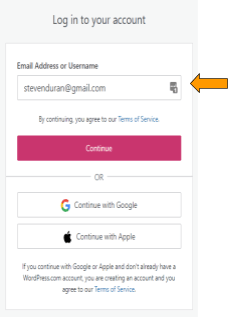
c. Click the fuchsia-colored “Continue” button.
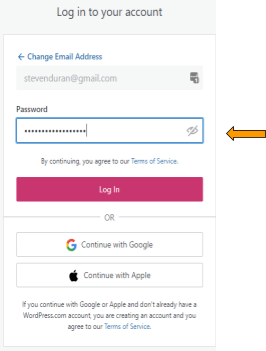
d. Then enter your password and click the fuchsia-colored “Log In” button.
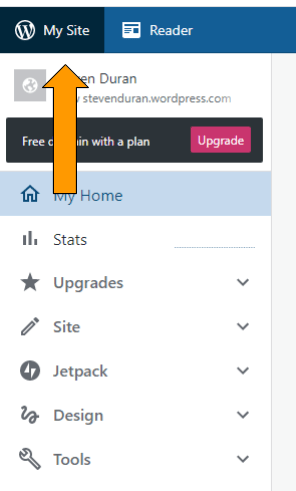
3. To add a new page in WordPress go to My Sites which is located in the task bar on the left side near the very top.
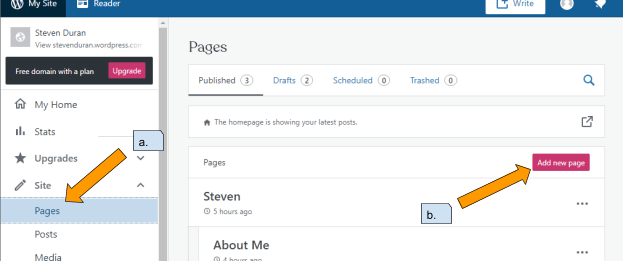
4. Inside the “Menu” on the left side of the site, there will be an option to select “Site”. Move your cursor over to and select the downward facing arrow to expand the menu. Then:
a. Select the second option “Pages” in the left column
b. Click the “Add new page” button on the right side of the screen.
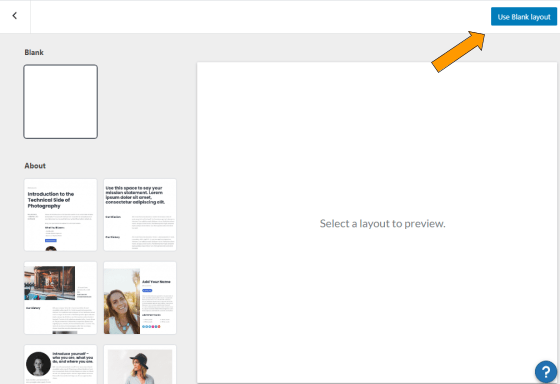
5. This will take you to a “Select Layout” page. Here, you have the option of choosing a pre-designed layout OR you may create a blank layout. After choosing “Blank” or one of the pre-designed layout select the blue “Use Layout” button.
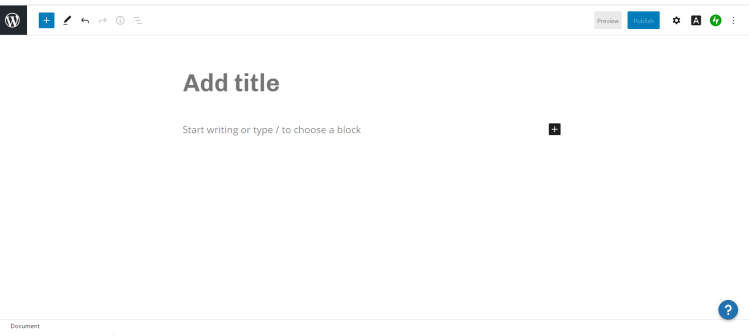
6. Now you will need to add a title to your page. To do that you will click on the grey “Add title” on the page. Then type your title text. Hit your Enter key when finished.
7. If you are finished please go to the view or show pages section.
Adding additional content blocks
You can add additional content blocks — for instance, a picture or Youtube video — to your page.
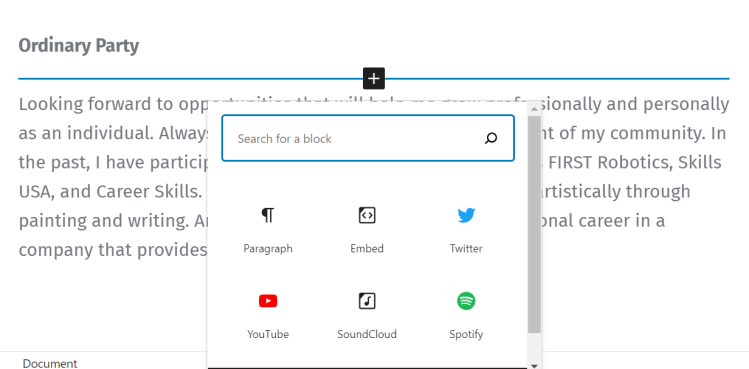
- To add a new content block click on the black box with the plus sign in it that is located on the right side or center of your page — it is revealed as you move your mouse around the surrounding area.

2. The box will expand into a small window with icons for the content types you would like to enter. If you don’t see the content type you want you can type it into the search bar.
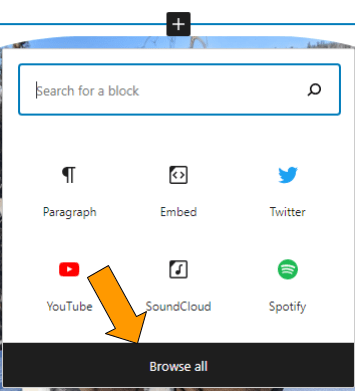
3. The “Browse all” button at the lower section of the window will allow you to see all the content types you can use. Click this button and the window will expand showing all the content types.
How to add an Image Block
- To add an image block you will click on the image icon or picture. WordPress will insert an image block, which will allow you to upload the image from your computer or another source.

2. Click on the blue “Upload” button to upload from your computer OR click “Select image” to use an already uploaded image OR click “insert from URL” to use an image located online.

3. Once you click the “Upload” button, a window will appear that will allow you to select an image from your computer files. Find the image that you would like to use and click it. The file name will appear in the field box, click “Open”. The image will appear on your page.
4. Press the “insert from URL” button to insert an image from an URL. A small window will appear for you to add in the url link. Copy and paste the link into the box. Then press the tiny swirly arrow button beside it.
5. Press the “Select Image” button to insert an image from Google Photos, Pexel, or your Media Library.
How to add a YouTube video
- Click the black box with a plus and then browse all.

2. If you press the icon or image for a YouTube video a box will appear that will allow you to put in the URL address of the video you are wanting to embed (display) on your web page.
3. Next you will need to head over to “youtube.com”. Use the search tool to find the video you want for your WordPress site.

4. Once you select a video you would like, look for the share button, a window should appear with multiple options.
5. Select the embed option and click on “copy”. This allows for the video to be posted on your site.

6. Next you will need to go to your WordPress site and find the YouTube box. Click and press the into the field with a blue “Embed” button. Press the “Ctrl” and the “V” keys on your keyboard at the same time to paste the YouTube URL.

To view or share your page (when you are finished making edits)
- Click on the blue “publish” button at the top of your site.

2. A window will appear. Here you will be given the option between viewing your page and sharing a link.

 wrecked.health.blog